
Account and operation
Login, billing, support and invitation code
All account-related actions are entered from the avatar in the upper right corner of the home page. Here we talk about the login method, export quota, payment, Support Ticket and invitation rewards.
Login entrance, login method and what to choose for the first time
Log in from the avatar in the upper right corner of the homepage
When not logged in, the help text of the button in the upper right corner is Sign In.
After clicking, the Beta Account Access login pop-up window will open.
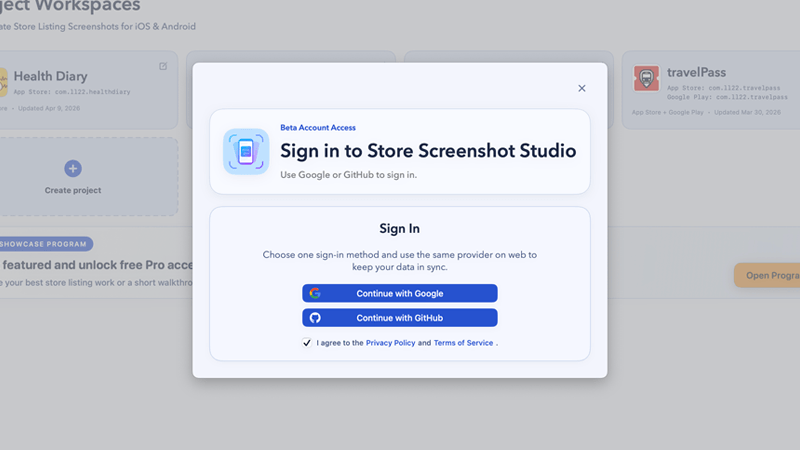
Sign In popup example.Check the box for legal consent
Please check I agree to the Privacy Policy and Terms of Service. before logging in.
When unchecked, the Google/GitHub login button will be grayed out.
Choose login method
Supports Continue with Google. If GitHub OAuth is configured, Continue with GitHub is also displayed.
You must use the same login provider for both the app and the web. If you use the same account with Google and GitHub at the same time, the system will treat it as two different accounts, and the packages, export quotas, support records, and invitation rewards will not be automatically merged.
You are asked to log in during the export process. Do not switch to another provider at this time.
Export is directly bound to the account quota. If you have been using Google on the web and temporarily changed your app to GitHub, it is likely that it will be a brand new account, and the quota and packages will not be shared.
What can you do in `Account Center`?
| area | use |
|---|---|
Profile | View current user name, email, user ID, and supports Sign Out. |
Plan & Usage | View the current package, the number of successful exports used, the remaining balance of the month, and can upgrade or Manage Billing. |
Invite | Check your own invitation code, copy it, count the number of rewards, and redeem the code given to you by others. |
Support | Create a Support Ticket, view historical messages, and reply according to rules. |
Showcase | Enter the Showcase Program. |
If you log in from the homepage avatar and successfully complete the login, the app will automatically open the Account Center. If you are asked to log in during the export process, after the login is completed, you will automatically return to the export process to continue execution.
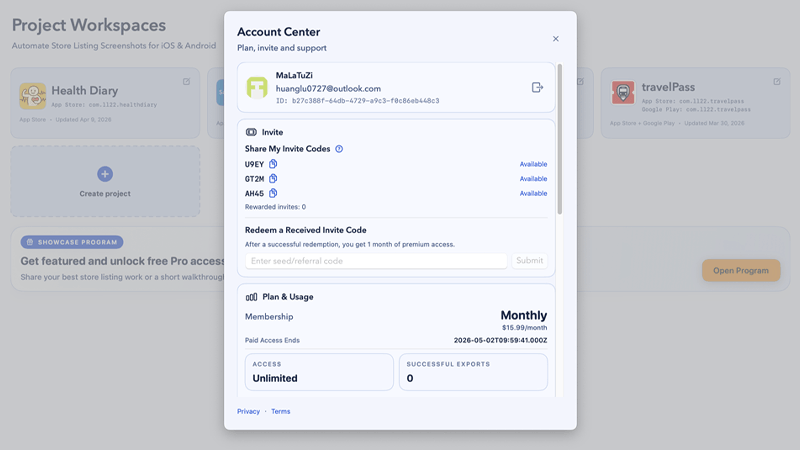
Account Center example: Plan & Usage, Invite, Support.Packages, export quota and payment entrance
- Free: 100 successful exports per month. Failed exports are not counted.
- Pro:
$15.99/month。 - Power:
$119/year。 - Paid users can click
Manage BillinginPlan & Usageto open the billing portal in browser. - Subscriptions are automatically renewed by default; after cancellation, only the next deduction will be stopped, and the current payment cycle will still be valid.
Why payments are done on the web
The payment action will be initiated in the app, but the real checkout and billing portal are implemented on the web. This makes it easier to keep billing status, portal management, and backend auditing consistent.
Invitation code: send the code by yourself, redeem the code by others, and bring it in automatically through deep link
Share your own invitation code
Go to Account Center > Invite.
Click the copy button to the right of each piece of code.
The status will show Available or Used.
When the other party logs in first, fills in your invitation code into Redeem a Received Invite Code and clicks Submit successfully, both parties will each receive 1 month of Pro rights.
Redeem the invitation code someone else gave you
Fill in the code in the Redeem a Received Invite Code input box.
Make sure you are logged in to the correct account first, then click Submit.
After successful submission, you and the owner of the invitation code will each receive 1 month of Pro benefits.
Common failures are shown directly in UI, such as invalid code, already redeemed by your account, exhausted/used code, and self-invite blocked.
Understand the invite rules
Each account has 3 invite codes.
Each invite code can only be used once.
The 'successful redemption' here means that the other party has logged in and submitted your code successfully, not just copied the code.
The Invite function can be accessed from the Account Center, or it may pop up automatically after logging in for the first time or when entering through a deep link.
Store Screenshot Studio itself also supports deep link to open the invitation code process. The code logic is: as long as the app is pulled up by a URL and the query contains seed_code or seedCode, the system will prefill this code into the invite flow. What we are talking about here is the account deep link of this app, not the capture deep link of the app being captured.
Account deep link agreement
text
...<any url that opens the app>?seed_code=ABC123
# or
...<any url that opens the app>?seedCode=ABC123
Support Ticket Usage Rules
Create a work order
Go to Account Center > Support.
Click Add Ticket in the upper right corner.
After filling in the Ticket subject and body, click Create Ticket.
View historical work orders
Each ticket displays the topic, last updated time, and a preview of the latest news.
Click the work order ontology to expand the detailed message flow.
Reply according to rules
You will only see Reply to this ticket + Send if the last message from Support is from support and the ticket is not closed.
If the last message was sent by you, the interface will prompt Waiting for support reply before your next message.. This is a product rule, not a bug.
It is best to add a screenshot to the official document to explain the reply rules.
There are many interactive states in the Support area: collapsed, expanded, waiting for reply, can send reply, closed. It is recommended to add two pictures later to show the status difference between 'can reply' and 'waiting for support reply'.
Showcase Program: Limited time event entrance
- Showcase Program is a limited-time event entrance. The entrance may appear on the banner in the
Account Center, or you can directly open Showcase Program. - You can submit a screenshot or a short screen recording; currently the web side supports up to 9 pictures and 1 short video.
- The selected works can receive additional Pro month rewards. The specific number of reward months is subject to the activity page and review results.
- If you check the public display authorization when submitting, the material may be used for display on the official website, product page or promotional space after approval; this part of the rules is also explained in Legal page and Terms.
Previous
Preview, template adjustment, rendering and export
After the original screenshots and copy are in place, this final step determines the quality of the finished film and the delivery catalog.
Next
Troubleshooting / FAQ
Centrally answer common questions related to deep link, Auto Capture, Upload, Copy, Export, login and quota to help you locate and solve problems faster.