
2026-06-13 · 8 min read
Why simulator language switching does not scale
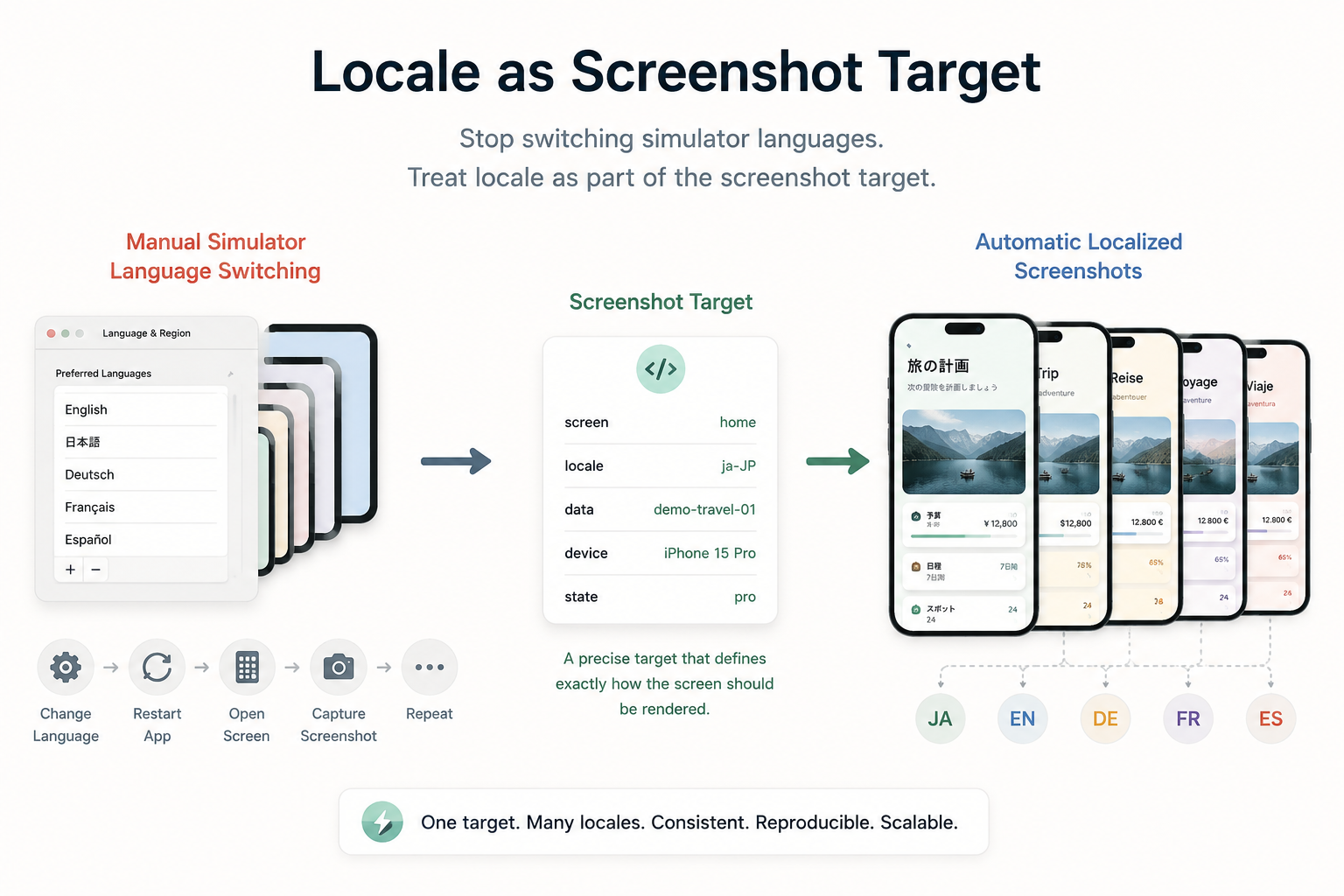
Changing simulator language works for manual QA, but it is a weak foundation for screenshot automation. It adds a global setting to a workflow that needs precise, repeatable inputs.
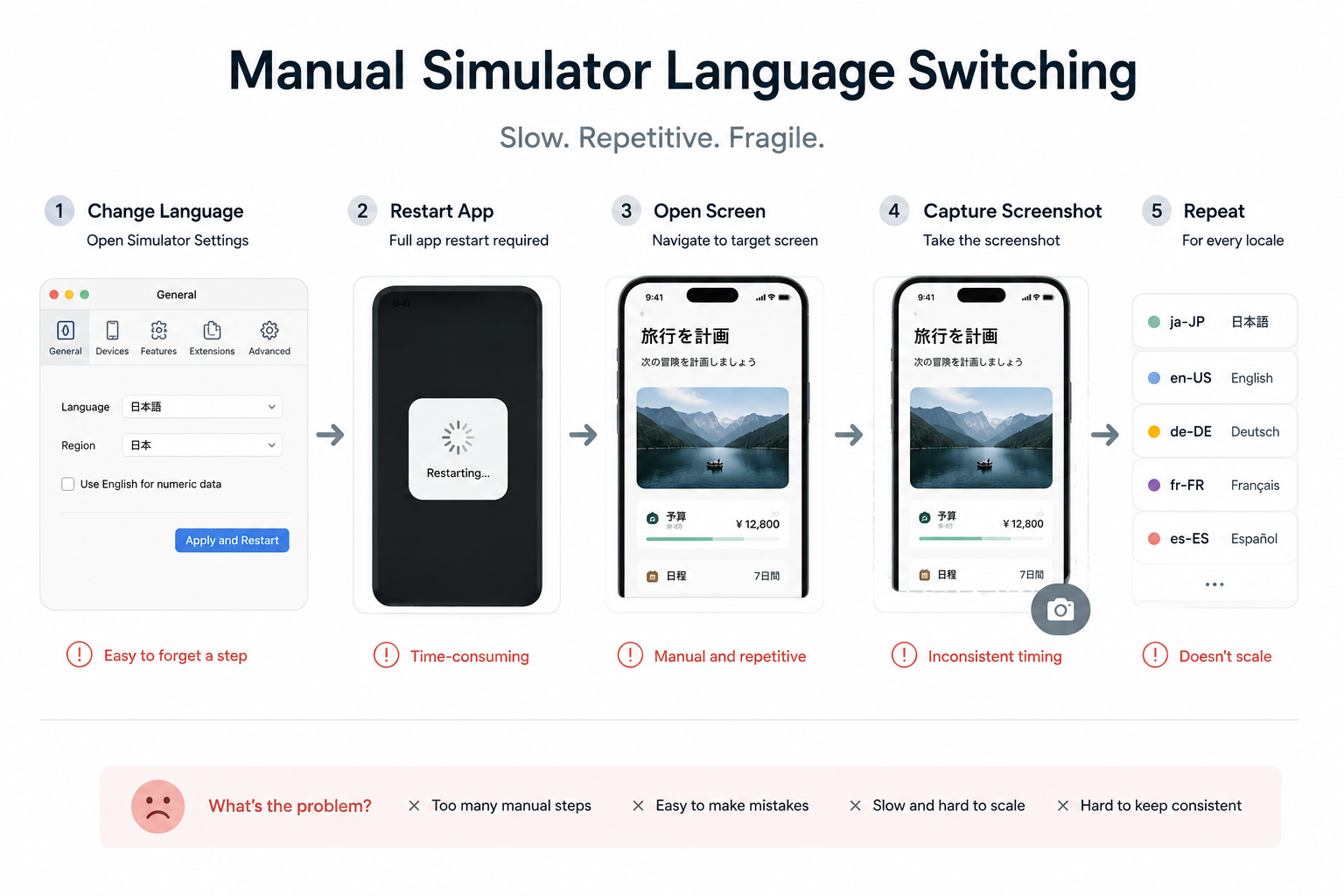
Every switch introduces extra steps: open settings, change language, restart or relaunch the app, confirm the language applied, navigate back to the target screen, and capture the screenshot. If the current simulator state is wrong, the mistake can travel into every exported image.
The cost multiplies quickly. Five screens, three device sizes, and ten languages already means 150 screenshot targets before you count empty states, Pro states, ads hidden, onboarding variants, or late copy changes.
- Simulator language is global, but screenshot targets should be specific.
- Manual language switching creates more chances for stale state and wrong captures.
- Regenerating localized screenshots becomes painful when the setup lives outside the target definition.
Make locale part of the screenshot target
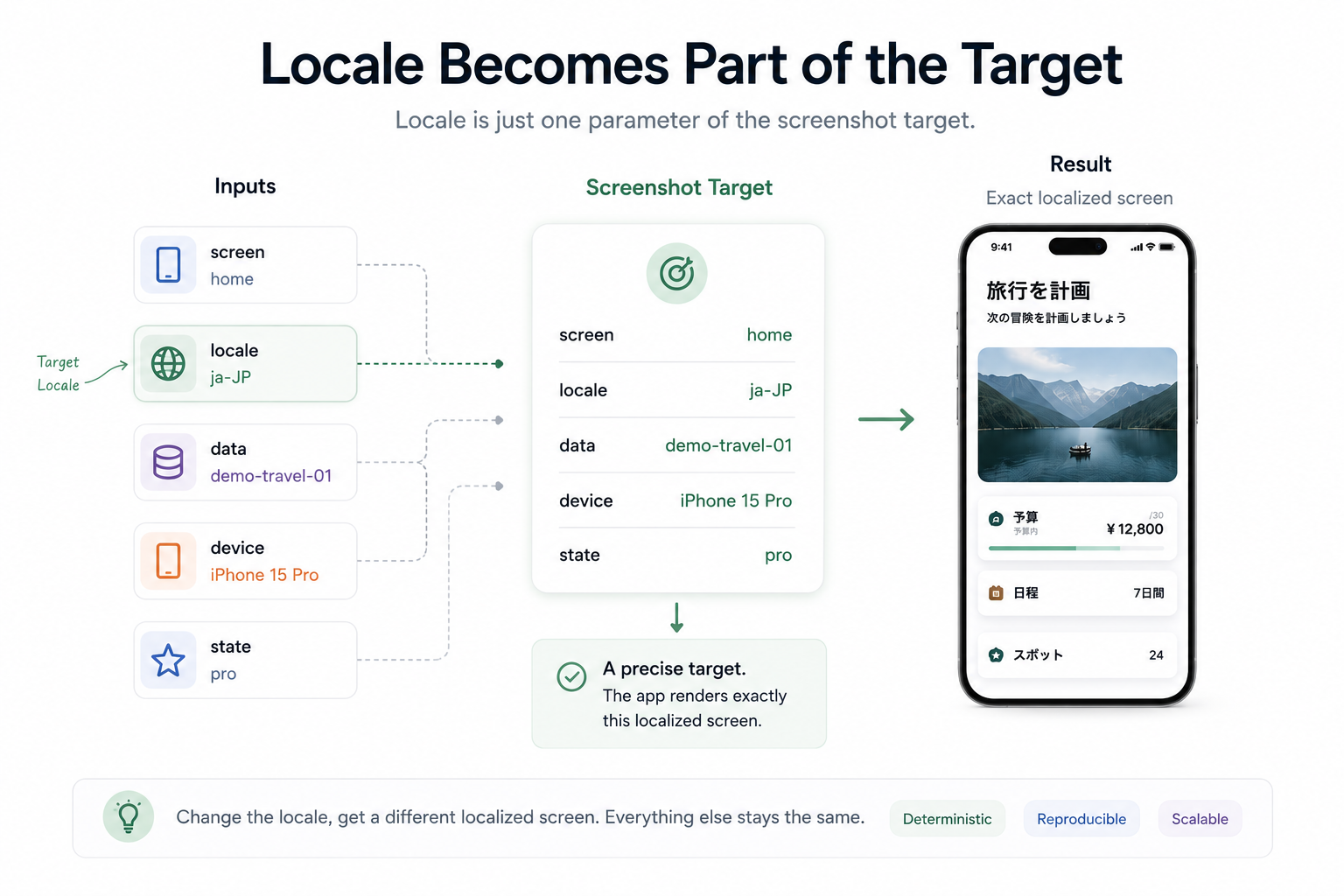
The core model is simple: screenshot target equals screen plus locale plus data plus device plus state. Locale should be treated like any other input that defines the screenshot.
A screenshot target might describe the home screen in ja-JP, using stable demo travel data, on a 6.5-inch iPhone, with Pro access enabled and ads hidden. Another target can use the same screen, data, device, and feature state, but render the UI in de-DE.
With that model, automation can loop through locales directly: open the target, wait for the screen to stabilize, capture, then move to the next locale. There is no need to remember which language the simulator is currently using.
Use deeplinks to pass locale and app state
Deeplinks are a practical way to make screenshot targets explicit. A screenshot deeplink can describe not only which screen should open, but also which locale, sample data, feature flags, scroll position, and visual state should be active.
For example, a target can include locale=ja-JP, data=demo-travel-01, pro=true, ads=false, and scrollTo=summary. The app receives the deeplink, parses the parameters, prepares the right data, applies the screenshot-only locale override, navigates to the target screen, and waits for capture.
Try screenshot capture
Capture localized app states, review copy and layout, then export store-ready screenshots.
Try Store Screenshot Studio freeThe exact URL format is less important than the contract. The app needs a deterministic screenshot mode that can render one capture in Japanese, the next in German, and the next in French without permanently changing a real user setting.
- Keep screenshot-only locale overrides isolated from normal app preferences.
- Use stable sample data instead of live user data for store screenshots.
- Pass feature states and scroll positions explicitly so captures can be regenerated later.
Wait for a stable localized UI before capture
Locale-aware capture only works if the screenshot is taken after the UI reaches the intended state. If capture happens too early, the screen may still be loading data, applying translations, finishing animation, or settling after navigation.
A practical automation flow is: open the deeplink, prepare target locale and data, wait for the UI to stabilize, then capture. For many app screens, a configurable wait time around 2000 to 3000 ms is enough. More complex screens may need a longer wait.
The goal is not theoretical perfection. The goal is predictable output. When every target has saved parameters and a known wait strategy, localized screenshot generation becomes much easier to rerun during release week.
Review localization layout problems after capture
Locale automation does not remove the need for visual review. It makes review realistic by lowering the cost of generating every language.
Localized screenshots fail in visual ways: German headlines overflow, Japanese text wraps differently, Chinese can feel dense, French may need more space, and right-to-left languages can expose alignment problems. Even when the app is translated correctly, the store screenshot may still need layout adjustment.
That is why the best workflow separates capture from layout. Capture produces consistent app screens. The screenshot template and localized copy layer can then handle title wrapping, subtitle length, device placement, background treatment, and final export sizes.
Build a repeatable localized screenshot pipeline
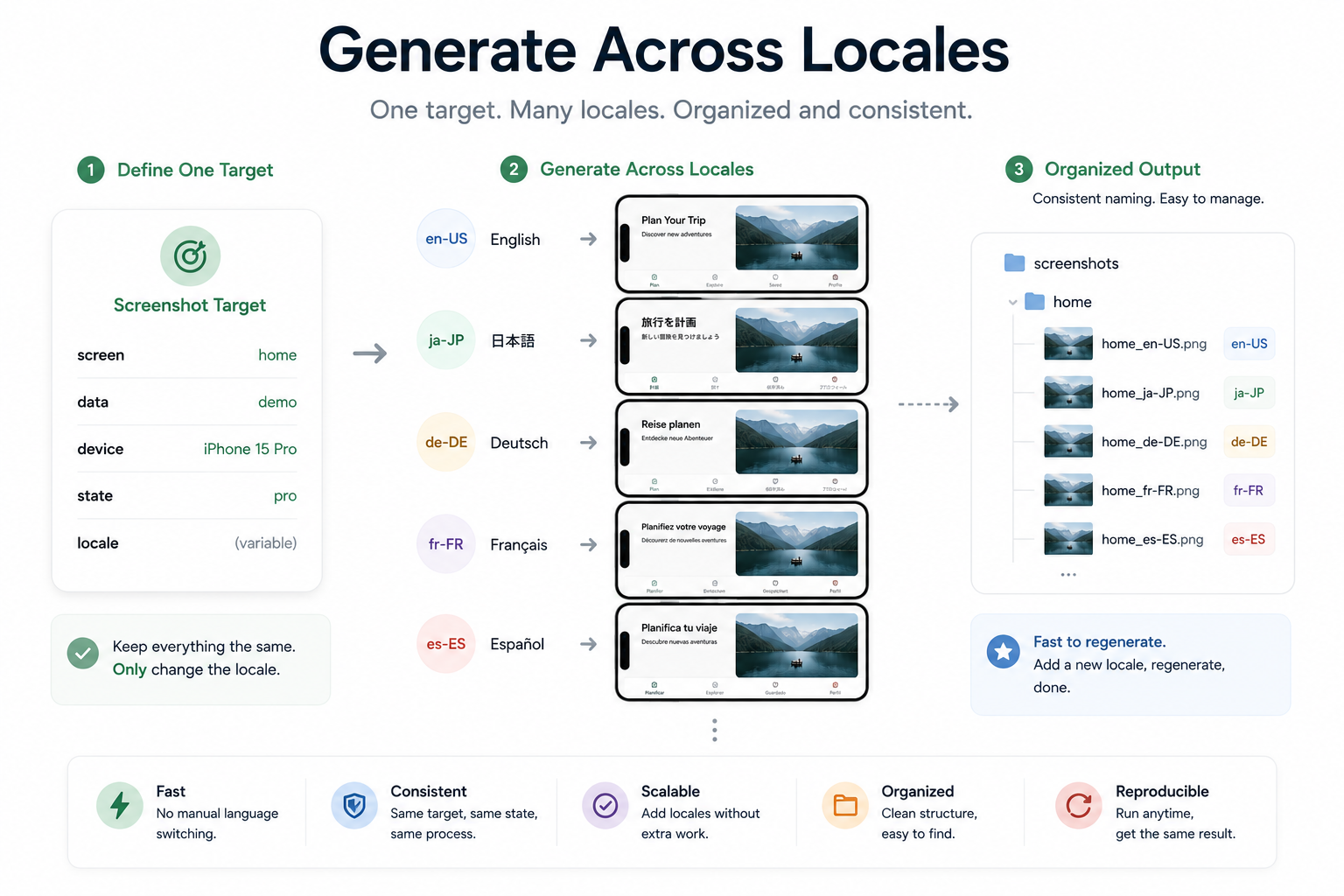
A complete localized screenshot workflow should know the screens, locales, devices, data, copy, layout, and export targets before the final export starts.
The pipeline can look like this: define screens once, define enabled locales, open each app state through a deeplink, auto-capture screenshots, apply localized screenshot copy, preview layout, then export organized store-ready images for App Store Connect and Google Play Console.
This matters most when something changes. If one headline changes, one locale is added, or one product screen is updated, the system should regenerate the affected screenshot set without rebuilding the entire process by hand.
Where Store Screenshot Studio fits
Store Screenshot Studio is built around this repeatable workflow. It helps teams define screens once, capture real app states with deeplinks, manage localized screenshot copy, preview layouts, and export App Store and Google Play screenshot folders from one macOS workflow.
The important idea is not simply taking screenshots faster. It is making the source of truth explicit: screen, locale, data, device, and state. Once those inputs are saved, localized app screenshots become easier to reproduce every time the release changes.
If your current process depends on manually switching simulator language for every market, move locale into the screenshot target. That one change makes the rest of the automation much more reliable.