2026-06-30 · 7 min read
Start with the capture target
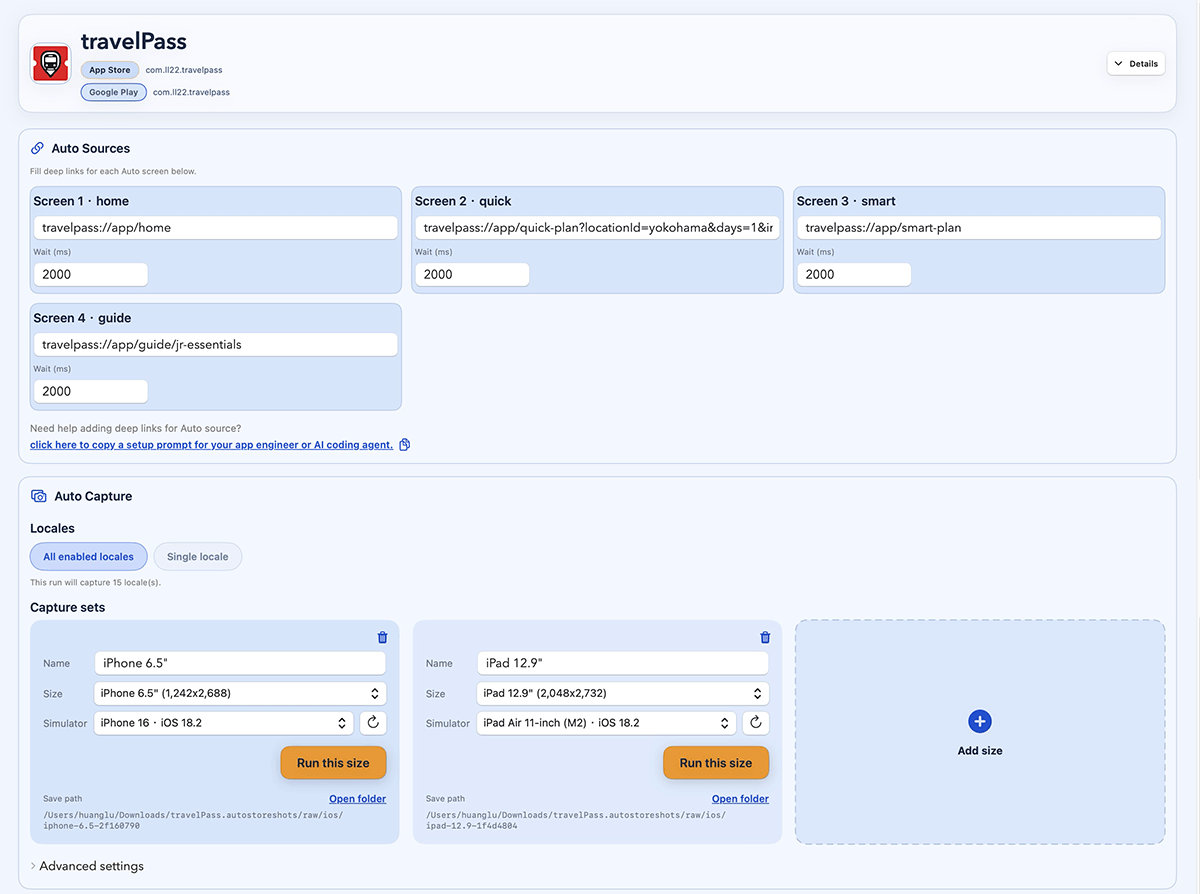
A capture target is the source of truth for a store screenshot. Instead of saying take screenshot number three, it says: open this route, use this locale, prepare this sample data, set this account state, wait this long, and capture on this device.
That model works for new app launches and updates. A new app needs the first full screenshot set. An existing app needs the same targets again when UI, copy, pricing, onboarding, or localization changes.
- Language should be an input, not a manual simulator setting.
- Screen should be opened directly, not found through repeated tapping.
- State and sample data should be prepared before the capture starts.
Make language explicit
Manual language switching feels acceptable for one screenshot and one language. It breaks down as soon as the screenshot set crosses devices, screens, and markets.
For localized app screenshots, locale belongs inside the screenshot target. The same screen can then be captured in en-US, ja-JP, de-DE, or fr-FR without relying on the current simulator language.
- Localized app screenshots
- App screenshots multiple languages
- How to take App Store screenshots in different languages
Use deeplinks for specific screens
A deeplink is useful because it can open the exact screen that belongs in the store listing. For screenshot work, the link can often carry more than a route. It can describe the selected tab, item ID, feature flag, scroll position, or display mode.
Try screenshot capture
Automate capture across languages, screens, states, sample data, and devices.
See app screenshot automationThe point is repeatability. If the screen can be reached from a saved target, the same image can be regenerated for another language, device, or update.
Prepare app state and sample data
Many store screenshots show a state that normal users may not reach immediately: logged-in dashboards, filled lists, empty states, trial paywalls, onboarding steps, or premium features.
Those states should not depend on live user data or a long manual setup. Use demo accounts, mock data, setup links, or screenshot-only app parameters so the state can be reproduced cleanly.
- Capture logged-in app screenshots
- Capture paywall screenshots
- Sample data app screenshots
- Mock data app screenshots
Where the workflow fits
Once the right source screens are captured, the rest of the workflow still matters. You need localized copy, templates, layout preview, export sizes, naming, and folders.
But the workflow should support the main problem, not hide it. The key value is automating the capture inputs that make store screenshots slow: language, screen, state, sample data, device, and timing.