2026-05-19 · 8 min read
The hidden trick behind automated App Store screenshots
Most screenshot tools start after you already have screenshots. They assume the painful capture work is finished, then help you add frames, text, backgrounds, and export sizes.
That is useful, but for multilingual apps it misses the part that hurts most. The hard part is often getting the correct source screenshot in the first place.
Instead of asking how to make screenshots prettier after capture, I started asking how to make the capture step repeatable. That is where deeplinks became useful for App Store screenshot automation.
- Open the correct screen without manual tapping.
- Pass state through the URL instead of relying on memory.
- Repeat the same screenshot target across locales and devices.
The real problem is setting up the app state
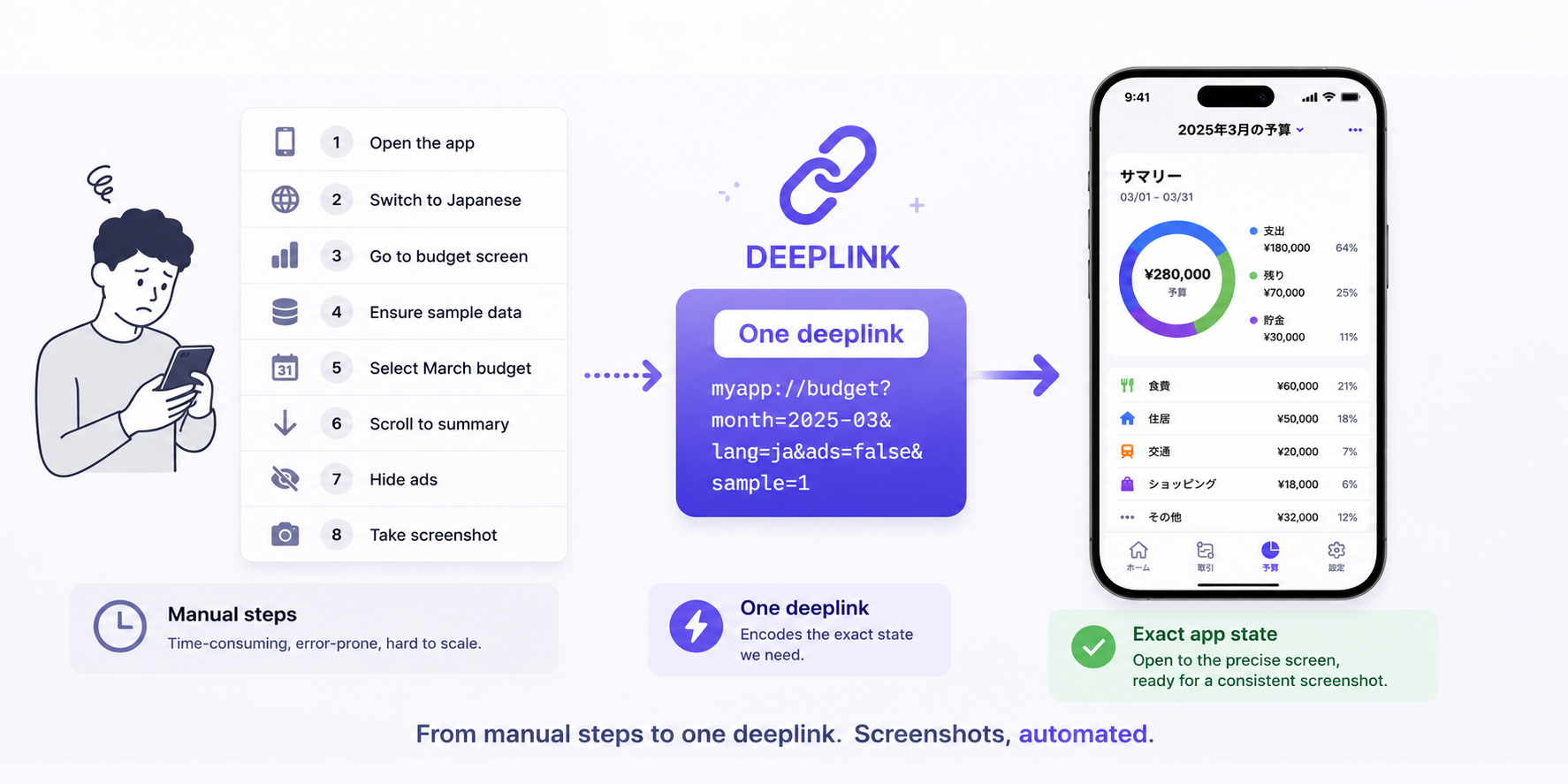
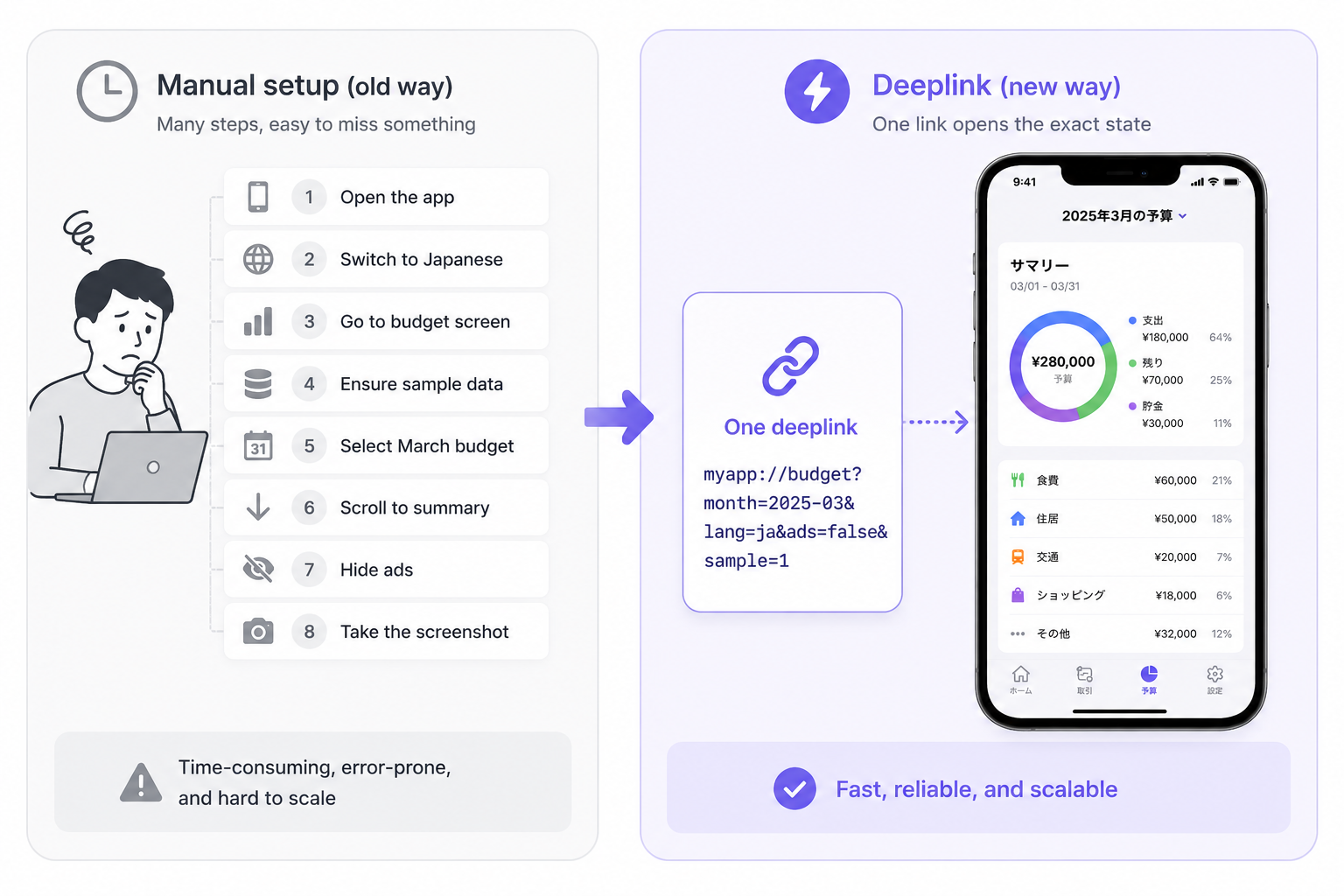
A screenshot only works when the app is in the exact state you want. For one screenshot, the app might need to open a specific screen, use Japanese, load sample data, enable Pro access, hide ads, scroll to a section, select a row, and wait until the UI is stable.
If you do this manually, small mistakes are easy. Maybe the language is wrong. Maybe the sample data changed. Maybe the list position is slightly off. Maybe one locale wraps differently and breaks the layout.
This is not only a design problem. It is a reproducibility problem, and reproducibility matters more as soon as you support localized App Store screenshots.
Why deeplinks are a good fit for screenshot automation
A deeplink is usually treated as a way to open an app directly to a specific screen. The app receives the deeplink, parses the path and parameters, then routes to the matching destination.
For screenshot automation, a deeplink can do more than navigation. If the parameters are designed carefully, the deeplink can describe the scene that should exist before capture.
Instead of only saying open the budget screen, a screenshot deeplink can say: open the budget screen, use this sample dataset, set this locale, hide ads, enable this feature state, scroll here, and prepare the UI for capture.
- Navigation becomes only one part of the screenshot target.
- Locale, data, permissions, and UI state become explicit inputs.
- Screenshots can be regenerated from the same target definition later.
What a screenshot deeplink can control
In my current workflow, deeplinks control much more than which page opens. They can define the screenshot target in a structured way so the app can rebuild the scene consistently.
Try screenshot capture
Define screens once, capture with deeplinks, localize copy, and export store-ready screenshots.
Try Store Screenshot Studio freeA practical screenshot deeplink can specify the screen, mock data, active tab, selected item, scroll position, ad visibility, Pro feature access, empty or filled state, and the moment when capture is allowed.
That matters because a repeatable screenshot target is easier to review, regenerate, and localize. You are no longer depending on a manual checklist that someone has to remember before every release.
A simple deeplink example
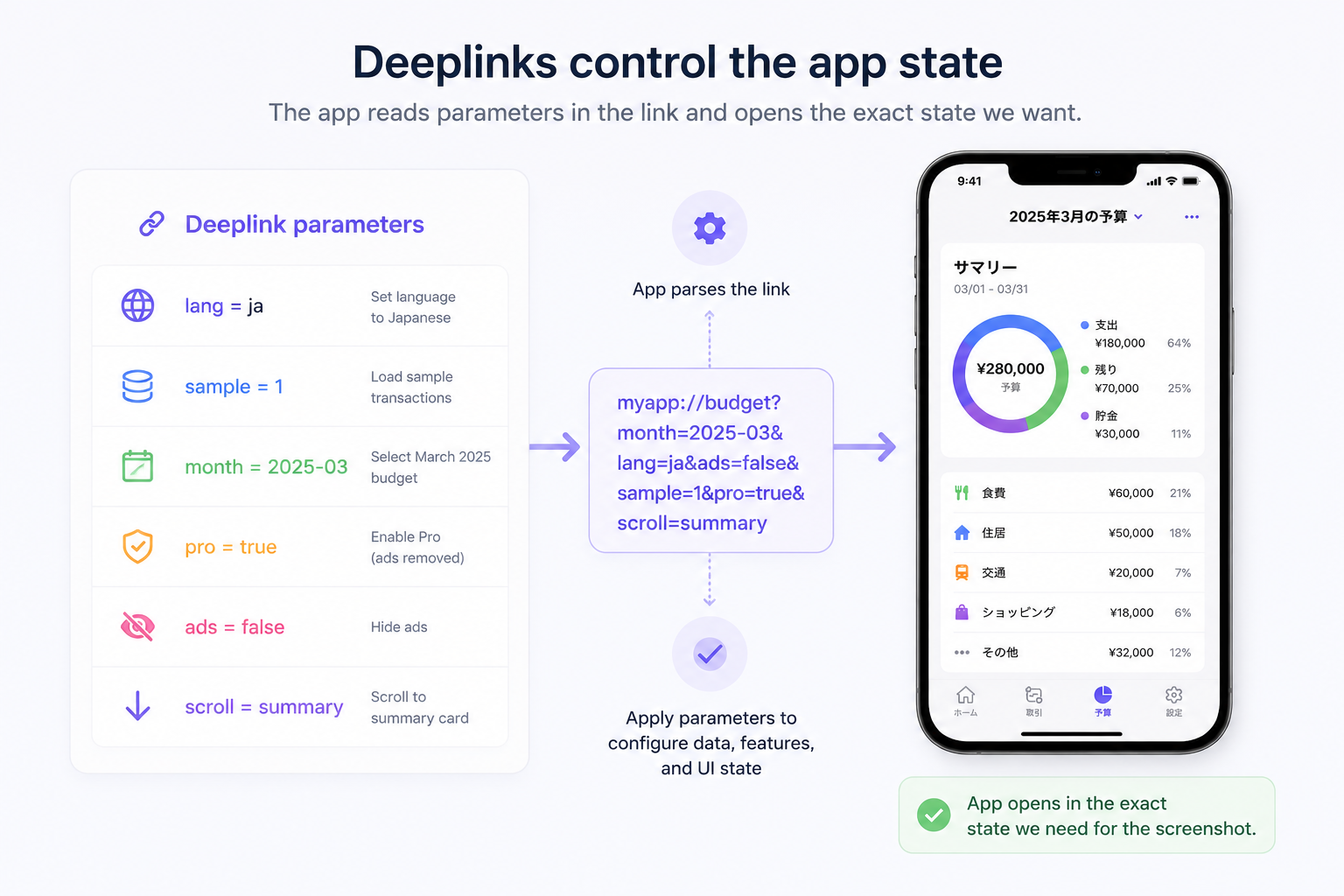
Imagine you want to capture a budgeting screen in Japanese with stable sample data, Pro features enabled, ads hidden, March 2026 selected, and the page scrolled to the summary section.
Manually setting that up is where time disappears. With a deeplink-based workflow, that target can be described as a budget screen with locale=ja-JP, data=sample-budget-01, pro=true, ads=false, selectedMonth=2026-03, and scrollTo=summary.
The exact format does not matter. The important part is that the screenshot target becomes explicit. Instead of relying on manual taps, you define the state that produces the screenshot.
My automated screenshot capture flow
The flow is straightforward: define screenshot targets, generate deeplink URLs, launch the app with each deeplink, wait for the UI to reach the expected state, capture the screenshot, then repeat across languages and devices.
In practice, each target contains the screen, locale, device, sample data, feature state, scroll position, and capture timing. Once those inputs are defined, the system can repeat the capture later.
The key is that screenshot automation should not depend on memory. It should depend on saved targets that can be run again when copy, localization, or UI changes.
Why this matters more for multilingual screenshots
For a single language, manual screenshots are painful but survivable. For multiple languages, everything multiplies: screens times devices times languages times app states.
Five screens, three device sizes, and ten languages already means 150 screenshots. That is before you consider Free user, Pro user, empty state, filled state, ads visible, or ads hidden.
The real cost is not only the number of screenshots. It is the repeated setup before every screenshot. That is why automating the capture step matters for App Store localization and ASO screenshot workflows.
The hard part is deterministic screenshot capture
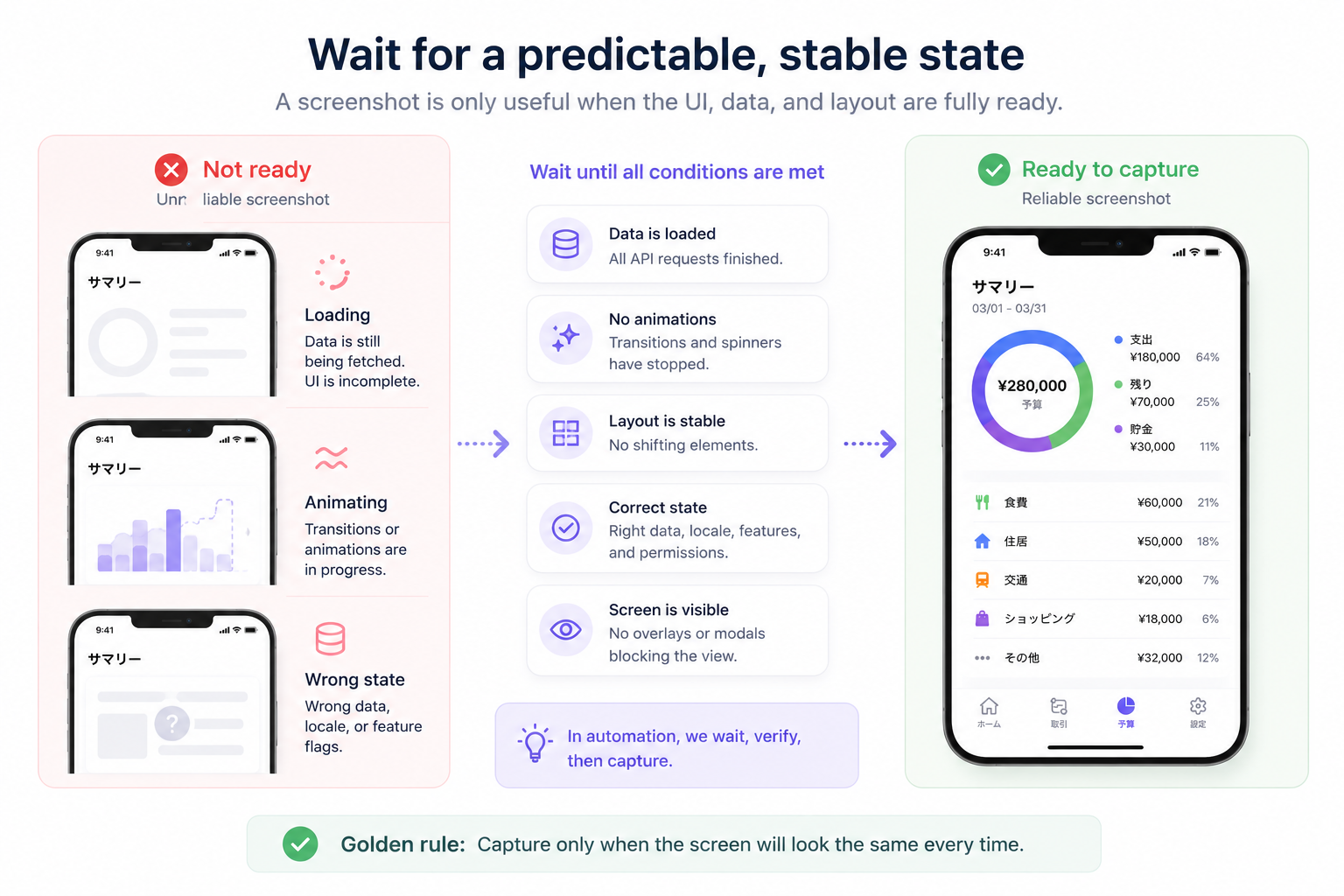
Using deeplinks is not magic. The hardest part is making sure the app reaches a stable and predictable state before the screenshot is taken.
If the screenshot is captured too early, the screen may still be loading. The automation needs waiting logic for rendered UI, loaded data, completed animation, and stable layout.
Sample data also has to be clean and repeatable. Real user data changes too much, so screenshot datasets should often be separate from normal app data and loaded intentionally through the deeplink target.
- Wait for the screen, data, and layout before capture.
- Use stable localized sample data instead of live user data.
- Keep screenshot-only behavior isolated from normal app logic.
Localization still needs layout review
Deeplinks make capture repeatable, but they do not make every localized layout perfect. Different languages behave differently in screenshots.
A short English phrase may become much longer in German. Japanese can wrap differently. French may need more space. Chinese can be compact but visually dense.
That is why the full workflow still needs preview, layout rules, template control, and human review. Deeplinks solve the state setup problem, not the entire ASO design problem.
What deeplinks do not solve
Deeplinks do not automatically fix weak copy, poor visual hierarchy, broken text layout, unclear benefits, or low-converting App Store positioning.
They solve one specific but important problem: how to get the app into the right state repeatedly.
After that, you still need templates, localized screenshot copy, device frames, export sizes, file naming, and judgment about what will make a user understand the app faster.
The bigger idea
The biggest shift for me was simple: screenshots should not be collected manually. They should be generated from defined app states.
Once I started thinking this way, the workflow became much easier to reason about. Define the screenshot target, open the app state through a deeplink, capture, and repeat across languages.
That approach makes it easier to rebuild screenshot sets later when the product changes, the marketing copy changes, or you add another language.
Why I built Store Screenshot Studio around this workflow
I originally built this workflow for myself because I was tired of spending hours setting up screenshots manually, especially for multilingual apps.
Existing tools helped with parts of the process, but I could not find one that handled the full path from capture to localized store-ready images.
Store Screenshot Studio is built around that idea: define screens once, auto-capture the right app state with deeplinks, apply localized copy, preview layout, and export App Store and Google Play screenshots without manual language switching.
Final thought
For a long time, I treated App Store screenshots as design assets. Now I think of them as app states.
Deeplinks are not just a navigation feature. For screenshot automation, they can become the bridge between the app state you want and the screenshot you need.